
Appearance
User
All Resellers
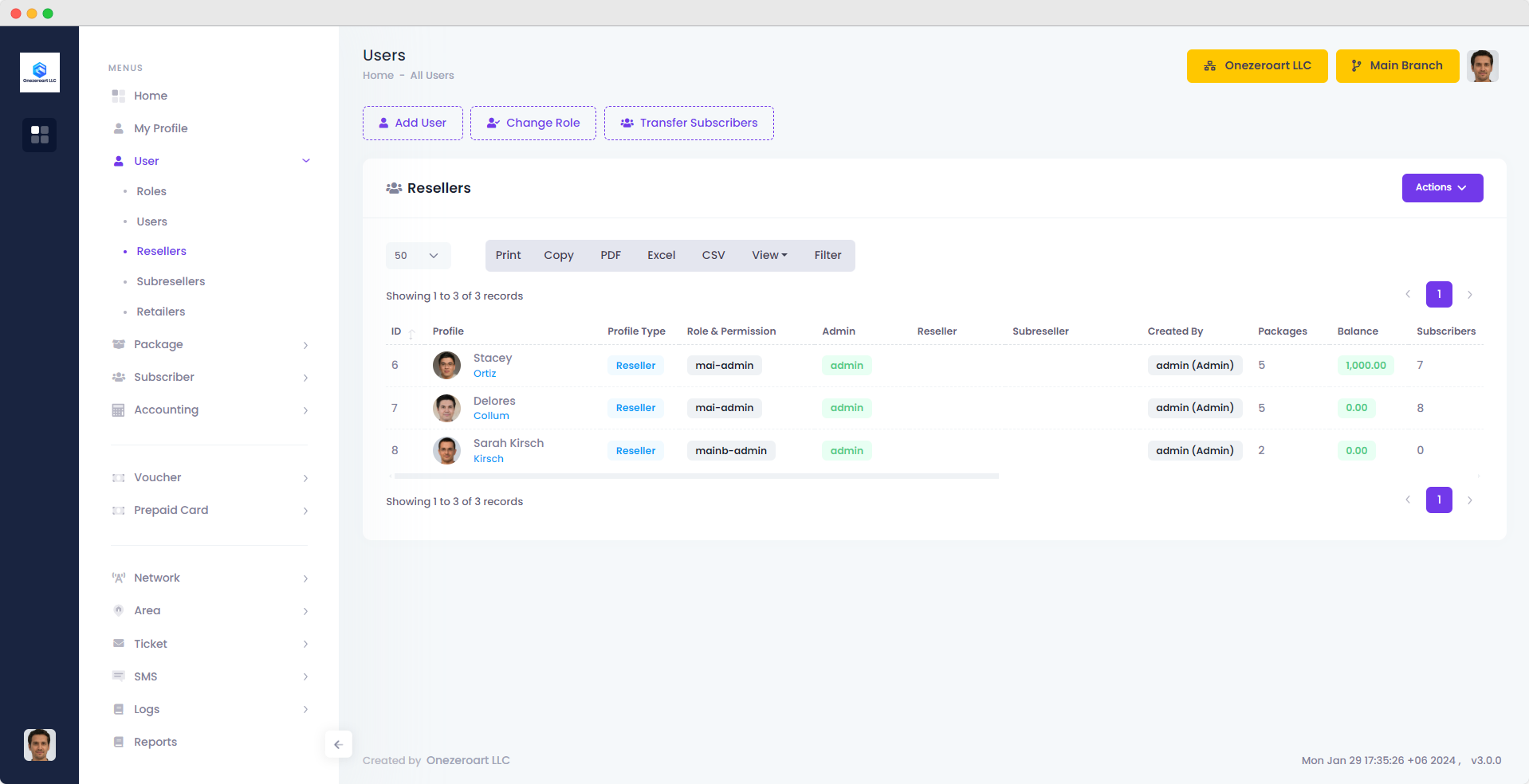
Reseller Profile
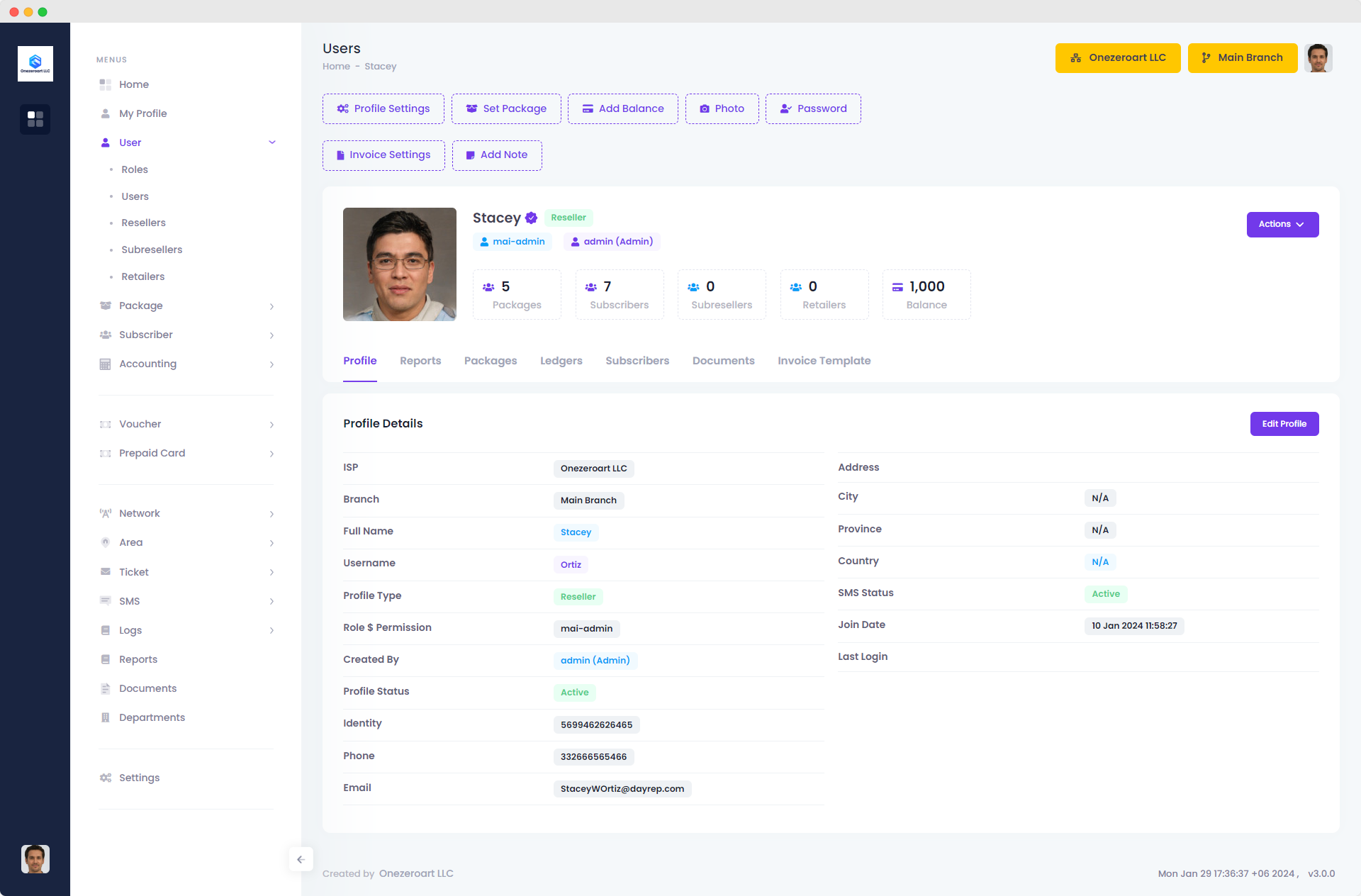
Add Reseller
To add a user, click the Actions dropdown and select "Add User" from the user page. Choose the profile type (staff, reseller, or sub-reseller) by enabling the status. Then, assign the appropriate roles and permissions. Once all details are entered, submit the form to add the user.
Note: Only admins can create resellers.
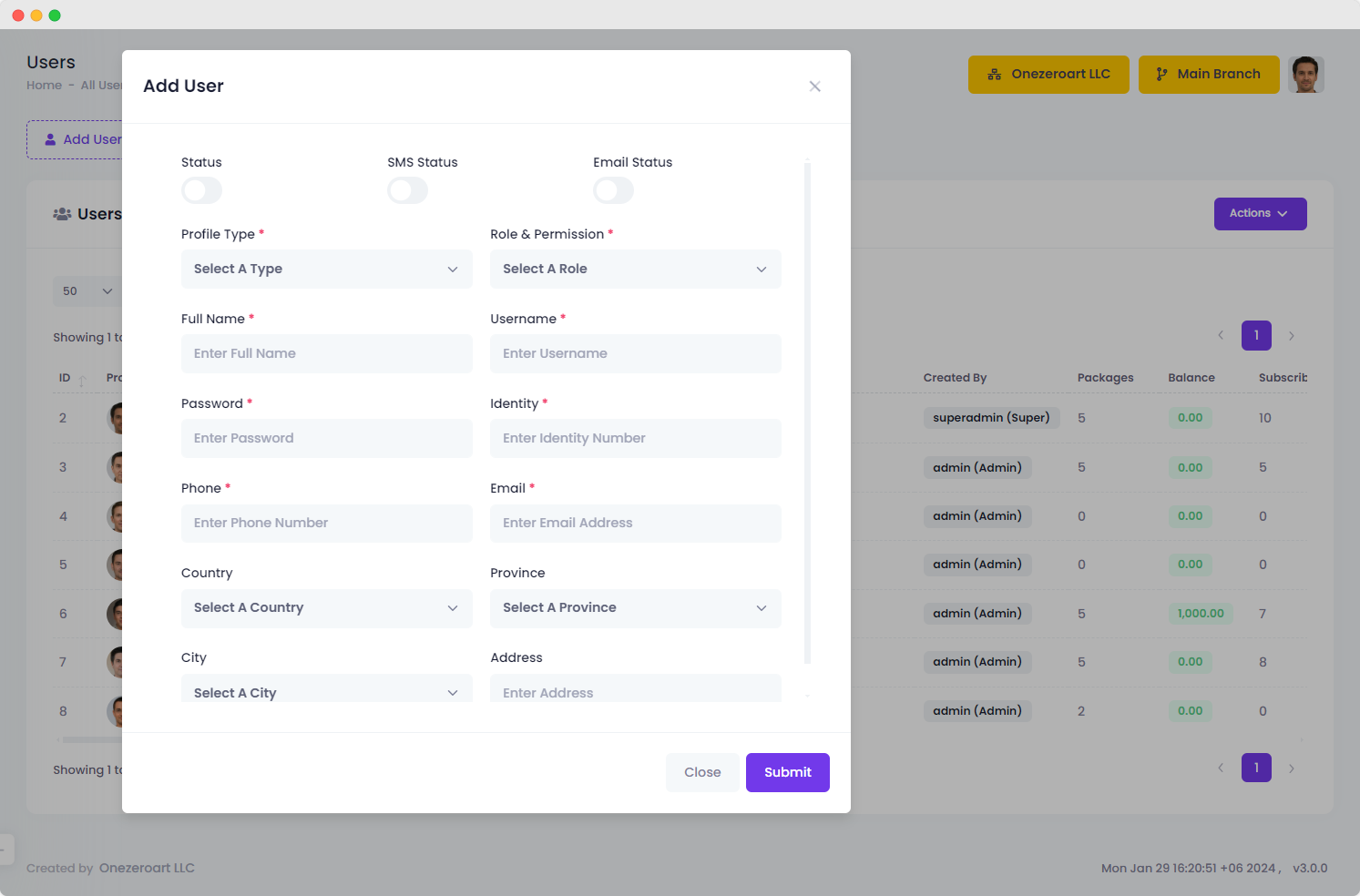
| Number | Attribute | Description |
|---|---|---|
| 1 | Status | Activate or deactivate the user profile for current accessibility. |
| 2 | SMS Status | SMS notifications on or off for the user. |
| 3 | Email Status | Enable or disable email notifications for the user. |
| 4 | Profile Type | Choose the user's profile type for categorization. |
| 5 | Role & Permission | Assign the user's role and permission level for specific access. |
| 6 | Full Name | Input the user's complete name for identification. |
| 7 | User Name | Set a unique username for personalized access. |
| 8 | Password | Create a secure password following the specified criteria. |
| 9 | Identity | Provide identity details for comprehensive user information. |
| 10 | Phone | Enter the user's contact number for communication. |
| 11 | Input the user's email address for correspondence. | |
| 12 | Country | Select the user's country from the provided options for accurate regional identification. |
| 13 | Province | Choose the user's province or state from the list for precise location information. |
| 14 | City | Enter the user's city for better regional identification. This information helps improve the accuracy of the geographical representation in the user profile. |
| 15 | Address | Input the user's current residential address. |