
Appearance
Hotspot Setup Guide
Overview
Hotspot (Captive Portal) provides web-based authentication for WiFi networks. Users connect to WiFi, open a browser, and authenticate through a login page before accessing the internet. This guide covers Hotspot setup for Zal Ultra with multiple vendors.
Supported Equipment:
- 🔧 MikroTik - RouterOS Hotspot
- 🌐 Cisco - Wireless LAN Controller (WLC)
- 🔒 UniFi - Ubiquiti UniFi Controller
- 📡 pfSense - Captive Portal
- 🚀 CoovaChilli - Open-source captive portal
What is Hotspot?
Hotspot = Captive Portal + RADIUS Authentication
  ✅ Web-based login (no client software needed)
  ✅ Works with any device (phone, laptop, tablet)
  ✅ RADIUS AAA integration
  ✅ Customizable login page
  ✅ Bandwidth control per user
  ✅ Usage tracking and billing
How Hotspot Works:
1. User connects to WiFi (no password or open password)
2. User opens browser → Redirected to login page
3. User enters username/password
4. Hotspot sends credentials to RADIUS (Zal Ultra)
5. Zal Ultra validates and returns access rights
6. Hotspot grants internet access
7. Hotspot sends accounting to Zal Ultra
8. Zal Ultra tracks usage and enforces quotas
MikroTik Hotspot Setup
Step 1: Create Hotspot Server Profile (General Tab)
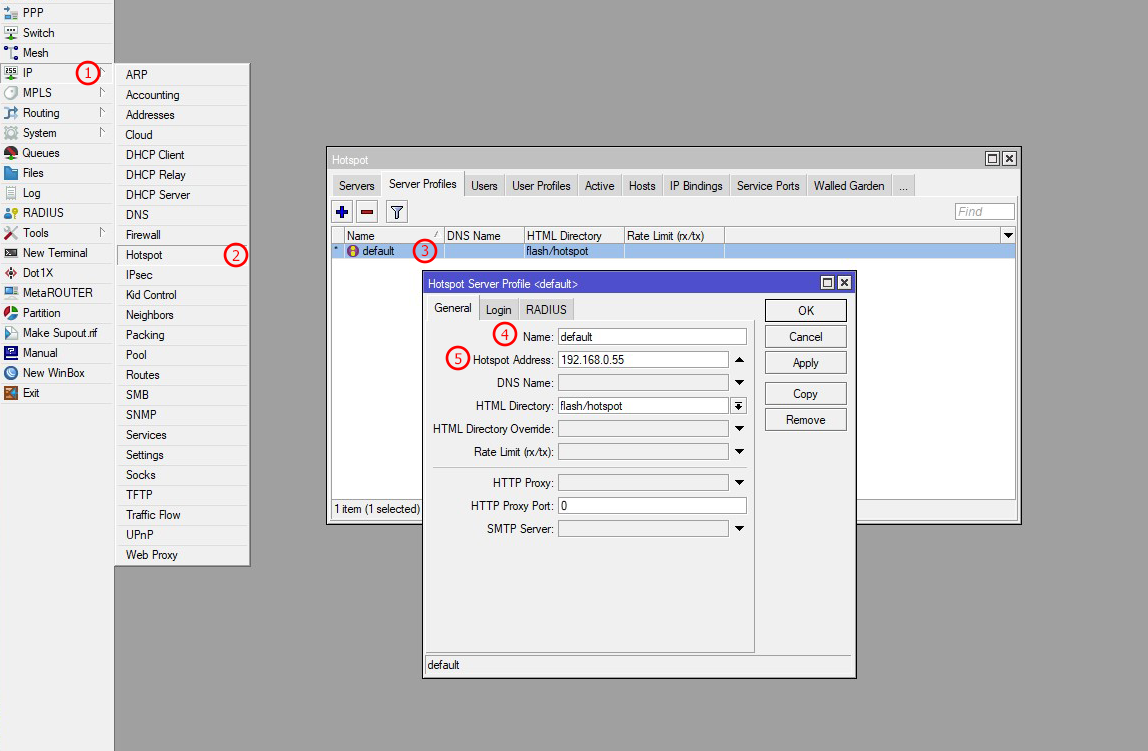
| Number | Description |
|---|---|
| 1 | First go to IP in Mikrotik from the left sidebar menu |
| 2 | Select Hotspot from the sub-menu of the left sidebar primary menu |
| 3 | On the new window, select the Server Profile Tab & create a new Hotspot profile by clicking the plus button |
| 4 | Insert a Hotspot Profile name (e.g., hotspot-profile-1) |
| 5 | Provide an IP address for your Hotspot Server. Your users can access your Hotspot Server by this IP address (e.g., 10.20.0.1) |
CLI Command:
bash
/ip hotspot profile
add name=hotspot-profile-1 \
    hotspot-address=10.20.0.1 \
    dns-name=hotspot.local \
    html-directory=hotspot \
    http-cookie-lifetime=1d \
    login-by=http-chap,http-pap \
    use-radius=yes
Profile Settings Explained:
hotspot-address=10.20.0.1    → IP for login page access
dns-name=hotspot.local       → DNS name for captive portal
html-directory=hotspot       → Login page template directory
http-cookie-lifetime=1d      → Session cookie lifetime (1 day)
login-by=http-chap,http-pap  → Authentication methods
use-radius=yes               → Enable RADIUS authentication
Step 2: Create Hotspot Server Profile (Login Tab)
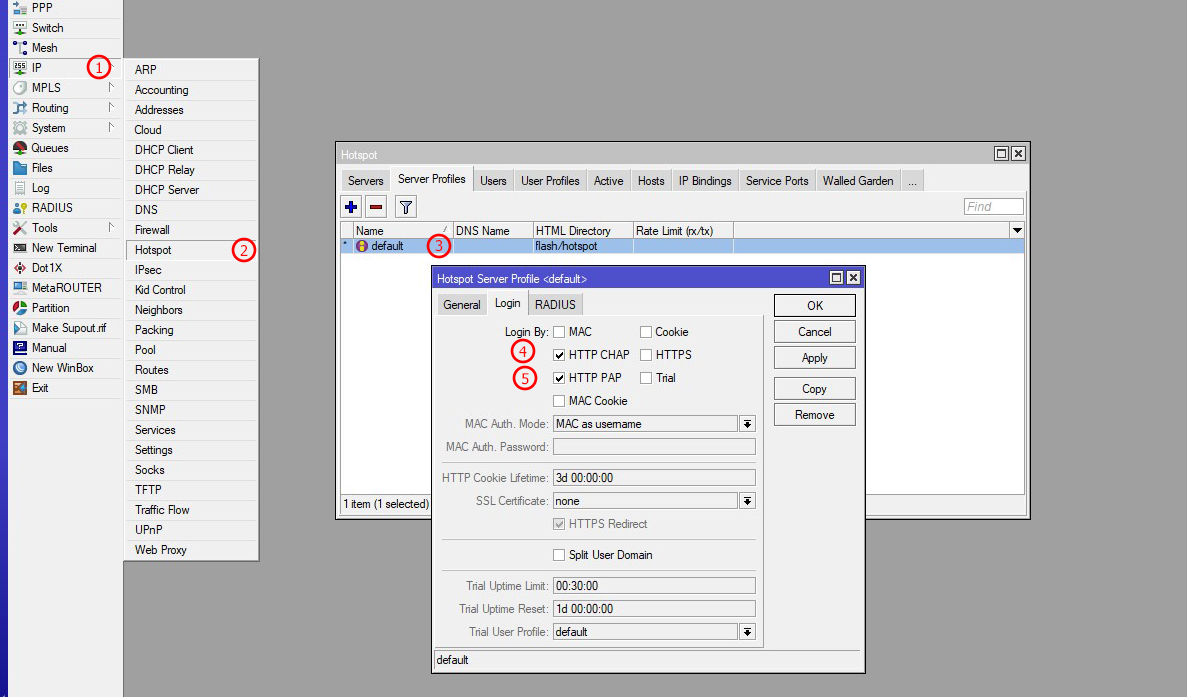
| Number | Description |
|---|---|
| 1 | First go to IP in Mikrotik from the left sidebar menu |
| 2 | Select Hotspot from the sub-menu of the left sidebar primary menu |
| 3 | On the new window, select the Server Profile Tab & create a new Hotspot profile by clicking the plus button |
| 4 | First click on the Login Tab from the top bar in the Hotspot Profile window, then enable HTTP CHAP to send user credentials in CHAP encrypted format. If you select HTTP CHAP, then HTTP PAP will be ignored in Zal Ultra. If you select HTTP CHAP, you can't see the user's plaintext password in the Zal Ultra login log |
| 5 | First click on the Login Tab from the top bar in the Hotspot Profile window, then enable HTTP PAP to send user credentials in PAP format. If you select HTTP CHAP, then HTTP PAP will be ignored in Zal Ultra. If you want to see the user password in the Zal Ultra login log, then enable HTTP PAP here. If you select HTTP CHAP, you can't see the user's plaintext password in the Zal Ultra login log |
CLI Command:
bash
/ip hotspot profile
set hotspot-profile-1 \
    login-by=http-chap,http-pap \
    http-proxy=0.0.0.0:0 \
    smtp-server=0.0.0.0 \
    split-user-domain=no \
    use-radius=yes
Authentication Methods:
HTTP CHAP (Challenge Handshake Authentication Protocol):
  ✅ Encrypted password exchange (MD5 hash)
  ✅ More secure than PAP
  ✅ Prevents password sniffing
  ⚠️ Zal Ultra cannot log plaintext password

HTTP PAP (Password Authentication Protocol):
  ✅ Simple plaintext password
  ✅ Compatible with all browsers
  ✅ Zal Ultra can log passwords
  ⚠️ Less secure (password visible in logs)

Recommendation: Enable BOTH for maximum compatibility
Most browsers will use CHAP if available
Step 3: Create Hotspot Server Profile (RADIUS Tab)
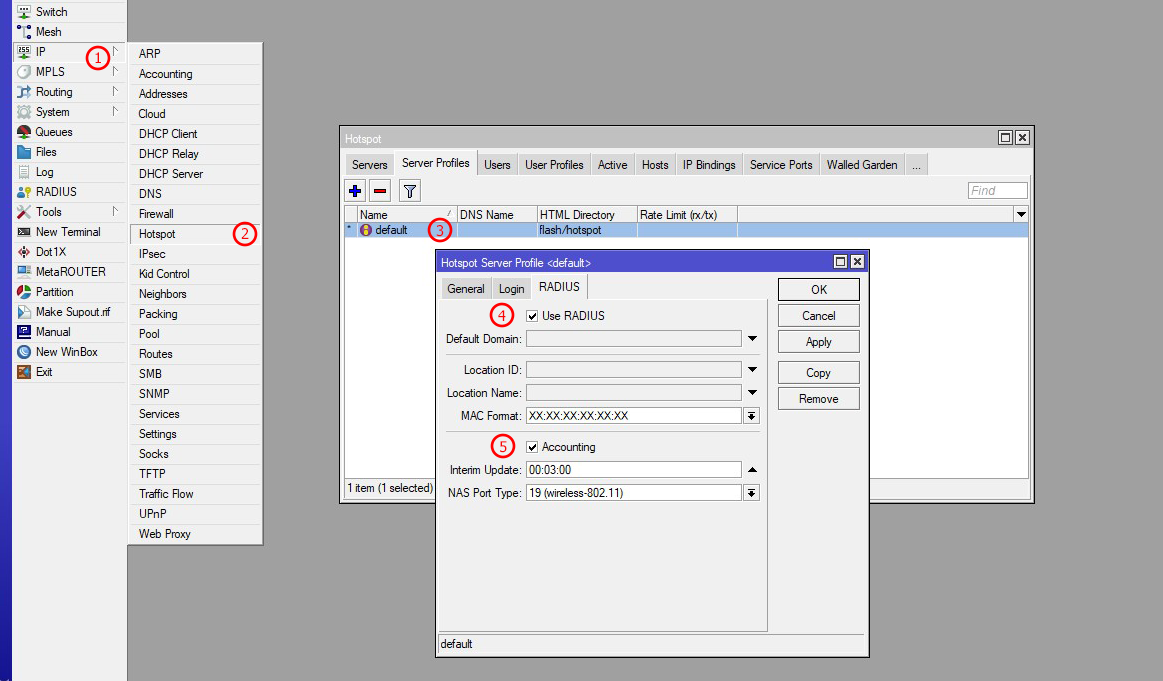
| Number | Description |
|---|---|
| 1 | First go to IP in Mikrotik from the left sidebar menu |
| 2 | Select Hotspot from the sub-menu of the left sidebar primary menu |
| 3 | On the new window, select the Server Profile Tab & create a new Hotspot profile by clicking the plus button |
| 4 | First click on the RADIUS Tab from the top bar in the Hotspot Profile window, then enable RADIUS Use in this window to enable RADIUS functionality for Hotspot users. If you enable RADIUS here, Mikrotik will send Hotspot auth requests to the Zal Ultra RADIUS server for AAA. Make sure you don't have a local Hotspot secret in Mikrotik or disable local secrets |
| 5 | Enable RADIUS Accounting for data usage calculation. Mikrotik will send accounting data to Zal Ultra. Also, set the Accounting Interim Update time, which will be used to send accounting data after the interim update time |
CLI Command:
bash
/ip hotspot profile
set hotspot-profile-1 \
    use-radius=yes \
    radius-accounting=yes \
    radius-interim-update=00:03:00
RADIUS Accounting Explained:
Interim Update = How often MikroTik sends accounting data

3 minutes (00:03:00):
  ✅ Real-time data usage tracking
  ✅ Accurate quota management
  ✅ Quick disconnect on quota exceed
  ⚠️ Higher RADIUS server load

5 minutes (00:05:00):
  ✅ Balanced performance
  ✅ Good for most WiFi networks
  ✅ Moderate server load

15 minutes (00:15:00):
  ✅ Lower server load
  ⚠️ Delayed quota updates
  ⚠️ Less accurate real-time data

Recommendation: 3-5 minutes for quota-based plans
Step 4: Create Hotspot Server
bash
# Quick setup wizard
/ip hotspot setup

# Or manual configuration
/ip pool
add name=hotspot-pool ranges=10.20.1.2-10.20.1.254

/ip address
add address=10.20.0.1/24 interface=ether2 network=10.20.0.0

/ip hotspot
add name=hotspot1 \
    interface=ether2 \
    address-pool=hotspot-pool \
    profile=hotspot-profile-1 \
    idle-timeout=5m \
    keepalive-timeout=none \
    addresses-per-mac=2
Hotspot Server Options:
interface=ether2           → WiFi/LAN interface
address-pool=hotspot-pool  → IP pool for clients
profile=hotspot-profile-1  → Link to profile
idle-timeout=5m            → Disconnect after 5 min idle
keepalive-timeout=none     → No keepalive (browser-based)
addresses-per-mac=2        → Max 2 IPs per MAC (phone + laptop)
Step 5: Configure RADIUS
bash
# Add RADIUS server (Zal Ultra)
/radius
add service=hotspot \
    address=192.168.1.100 \
    secret=YourSecretKey123 \
    authentication-port=1812 \
    accounting-port=1813 \
    timeout=3000ms

# Enable RADIUS incoming (CoA)
/radius incoming
set accept=yes port=3799
Step 6: Configure Walled Garden
Walled Garden = Sites accessible without login
bash
# Allow access to login page assets
/ip hotspot walled-garden
add dst-host=hotspot.local action=allow

# Allow DNS
add dst-port=53 protocol=udp action=allow

# Allow specific websites (e.g., payment gateway)
add dst-host=*.paymentgateway.com action=allow
add dst-host=*.facebook.com action=allow

# Allow Zal Ultra server
add dst-host=192.168.1.100 action=allow
Common Walled Garden Entries:
✅ DNS servers (port 53)
✅ Login page domain
✅ Payment gateways
✅ Social media login (Facebook, Google)
✅ Zal Ultra server
✅ Splash page images/CSS
Step 7: Customize Login Page
bash
# Download default template
/tool fetch url=https://example.com/hotspot-template.zip

# Extract to hotspot directory
# Files location: /flash/hotspot/

# Edit login.html
/file edit hotspot/login.html

# Customize with your branding
# - Company logo
# - Colors and styling
# - Terms and conditions
# - Social media links
Login Page Files:
login.html      → Main login page
logout.html     → Logout page
status.html     → Status page (usage, time remaining)
error.html      → Error page
alogin.html     → Admin login
radvert.html    → Advertisement page
styles.css      → Custom styling
logo.png        → Company logo
Complete MikroTik Hotspot Configuration
bash
# ============================================
# Complete MikroTik Hotspot Configuration
# For Zal Ultra RADIUS Integration
# ============================================

# Step 1: Create IP Pool
/ip pool
add name=hotspot-pool ranges=10.20.1.2-10.20.1.254

# Step 2: Configure Interface
/ip address
add address=10.20.0.1/24 interface=ether2 network=10.20.0.0

# Step 3: Create Hotspot Profile
/ip hotspot profile
add name=hotspot-profile-1 \
    hotspot-address=10.20.0.1 \
    dns-name=hotspot.local \
    html-directory=hotspot \
    http-cookie-lifetime=1d \
    login-by=http-chap,http-pap \
    use-radius=yes \
    radius-accounting=yes \
    radius-interim-update=00:03:00

# Step 4: Create Hotspot Server
/ip hotspot
add name=hotspot1 \
    interface=ether2 \
    address-pool=hotspot-pool \
    profile=hotspot-profile-1 \
    idle-timeout=5m \
    addresses-per-mac=2

# Step 5: Configure RADIUS (Zal Ultra)
/radius
add service=hotspot \
    address=192.168.1.100 \
    secret=YourSecretKey123 \
    authentication-port=1812 \
    accounting-port=1813 \
    timeout=3000ms

# Step 6: Enable CoA
/radius incoming
set accept=yes port=3799

# Step 7: Configure Walled Garden
/ip hotspot walled-garden
add dst-host=hotspot.local action=allow
add dst-port=53 protocol=udp action=allow
add dst-host=192.168.1.100 action=allow

# Step 8: Configure DNS
/ip dns
set servers=8.8.8.8,8.8.4.4 allow-remote-requests=yes

# Step 9: Configure Firewall (optional)
/ip firewall filter
add chain=input protocol=udp src-address=192.168.1.100 dst-port=1812,1813,3799 action=accept comment="Allow Zal Ultra RADIUS"
Cisco WLC Hotspot Setup
Configure WLAN with Web Authentication
cisco
! Create WLAN
config wlan create 1 Guest-WiFi Guest-WiFi

! Configure security (open with web auth)
config wlan security web-auth enable 1
config wlan security web-auth server-precedence 1 radius

! Configure RADIUS
config radius auth add 1 192.168.1.100 1812 ascii YourSecretKey123
config radius acct add 1 192.168.1.100 1813 ascii YourSecretKey123

! Enable WLAN
config wlan enable 1
UniFi Hotspot Setup
Configure Guest Portal
- Open UniFi Controller
- Settings → Guest Control
- Enable Guest Portal
- Authentication: RADIUS
- RADIUS Server: 192.168.1.100
- RADIUS Secret: YourSecretKey123
- Accounting: Enabled
- Customize Portal: Upload logo, set colors
pfSense Captive Portal Setup
Configure Captive Portal
1. Services → Captive Portal
2. Add new zone: "Guest WiFi"
3. Interface: LAN or WiFi interface
4. Authentication: RADIUS
5. RADIUS Server:
   - IP: 192.168.1.100
   - Port: 1812
   - Secret: YourSecretKey123
6. Accounting:
   - Enable: Yes
   - Port: 1813
   - Update Interval: 300 seconds
7. Portal Page: Customize HTML
8. Save and Apply
CoovaChilli Setup
Installation
bash
# Install CoovaChilli
apt-get install -y coova-chilli

# Configure
cat > /etc/chilli/defaults << 'EOF'
HS_LANIF=eth1
HS_NETWORK=10.20.0.0
HS_NETMASK=255.255.255.0
HS_UAMLISTEN=10.20.0.1
HS_UAMPORT=3990
HS_UAMUIPORT=4990
HS_RADIUS=192.168.1.100
HS_RADIUS2=192.168.1.100
HS_RADSECRET=YourSecretKey123
HS_UAMSECRET=changeme
HS_UAMALLOW=192.168.1.100
HS_UAMSERVER=http://10.20.0.1/hotspot
HS_NASID=CoovaChilli-01
EOF

# Start service
systemctl start chilli
systemctl enable chilli
Verification & Testing
MikroTik Verification
bash
# Show hotspot users
/ip hotspot active print

# Show hotspot statistics
/ip hotspot print stats

# Show RADIUS communication
/radius monitor 0

# Test user login
# Connect to WiFi → Open browser → Login
Check User Session
bash
# View active sessions
/ip hotspot active print detail

# Show user details
/ip hotspot active print where user=username

# Monitor bandwidth
/ip hotspot active print stats
Troubleshooting
Issue 1: Login Page Not Showing
Symptoms:
❌ User connects to WiFi
❌ Browser doesn't redirect to login page
❌ No captive portal detected
Solutions:
bash
# Check hotspot status
/ip hotspot print

# Verify interface
/ip hotspot print detail

# Check IP address
/ip address print where interface=ether2

# Test DNS
/tool dns-lookup hotspot.local

# Check walled garden
/ip hotspot walled-garden print
Issue 2: Authentication Fails
Symptoms:
✅ Login page appears
❌ Username/password rejected
❌ "Invalid credentials" error
Solutions:
bash
# Check RADIUS configuration
/radius print

# Test RADIUS connectivity
/tool ping 192.168.1.100

# Check RADIUS secret
# Must match Zal Ultra NAS secret exactly

# Enable debug
/system logging
add topics=radius,info action=memory
add topics=hotspot,info action=memory

# View logs
/log print where topics~"radius"
Issue 3: No Internet After Login
Symptoms:
✅ Login successful
✅ Status shows "connected"
❌ No internet access
Solutions:
bash
# Check NAT
/ip firewall nat print

# Verify routing
/ip route print

# Check DNS
/ip dns print

# Test from MikroTik
/tool ping 8.8.8.8
Issue 4: Accounting Not Working
Symptoms:
✅ User logs in successfully
❌ No data usage in Zal Ultra
❌ Quota not decreasing
Solutions:
bash
# Check accounting settings
/ip hotspot profile print detail

# Verify radius-accounting=yes
/ip hotspot profile set hotspot-profile-1 radius-accounting=yes

# Check interim update
/ip hotspot profile set hotspot-profile-1 radius-interim-update=00:03:00

# Monitor RADIUS packets
/radius monitor 0
Best Practices
Security
✅ Use strong RADIUS secret
✅ Enable HTTPS for login page (SSL certificate)
✅ Restrict walled garden to essential sites only
✅ Use HTTP CHAP for password encryption
✅ Set reasonable idle timeout (5-10 minutes)
✅ Limit addresses-per-mac (prevent abuse)
✅ Monitor failed login attempts
✅ Regular firmware updates
Performance
✅ Use appropriate interim update (3-5 minutes)
✅ Set idle-timeout to free resources
✅ Monitor active sessions count
✅ Use separate VLAN for guest WiFi
✅ Limit bandwidth per user (via RADIUS)
✅ Cache DNS queries
✅ Optimize login page (small images, minified CSS)
User Experience
✅ Simple, clean login page design
✅ Clear instructions
✅ Show terms and conditions
✅ Display usage/time remaining
✅ Easy logout button
✅ Support page/contact info
✅ Mobile-friendly design
✅ Fast page load time
Customization Tips
Branding
✅ Add company logo
✅ Use brand colors
✅ Custom background image
✅ Branded email templates
✅ Social media links
✅ Promotional banners
Features
✅ Social login (Facebook, Google)
✅ Voucher/coupon codes
✅ Advertisement page
✅ Survey/feedback form
✅ Terms acceptance checkbox
✅ Multi-language support
✅ SMS verification
Related Documentation
- 📘 PPPoE Setup - PPPoE configuration
- 🔐 RADIUS Setup - FreeRADIUS configuration
- 🔧 MikroTik API - API integration
Summary
✅ Hotspot Setup Complete!
What We Configured:
- ✅ Hotspot server profile (all 3 images preserved)
- ✅ RADIUS AAA integration
- ✅ Walled garden for pre-login access
- ✅ Custom login page
- ✅ CoA for remote management
- ✅ Multi-vendor support
Key Points:
✅ RADIUS secret MUST match Zal Ultra
✅ Enable both HTTP CHAP and PAP
✅ Set interim-update to 3-5 minutes
✅ Configure walled garden properly
✅ Customize login page for branding
✅ Monitor RADIUS communication
✅ Test thoroughly before deployment
Your Hotspot is ready for Zal Ultra! 🚀