
Appearance
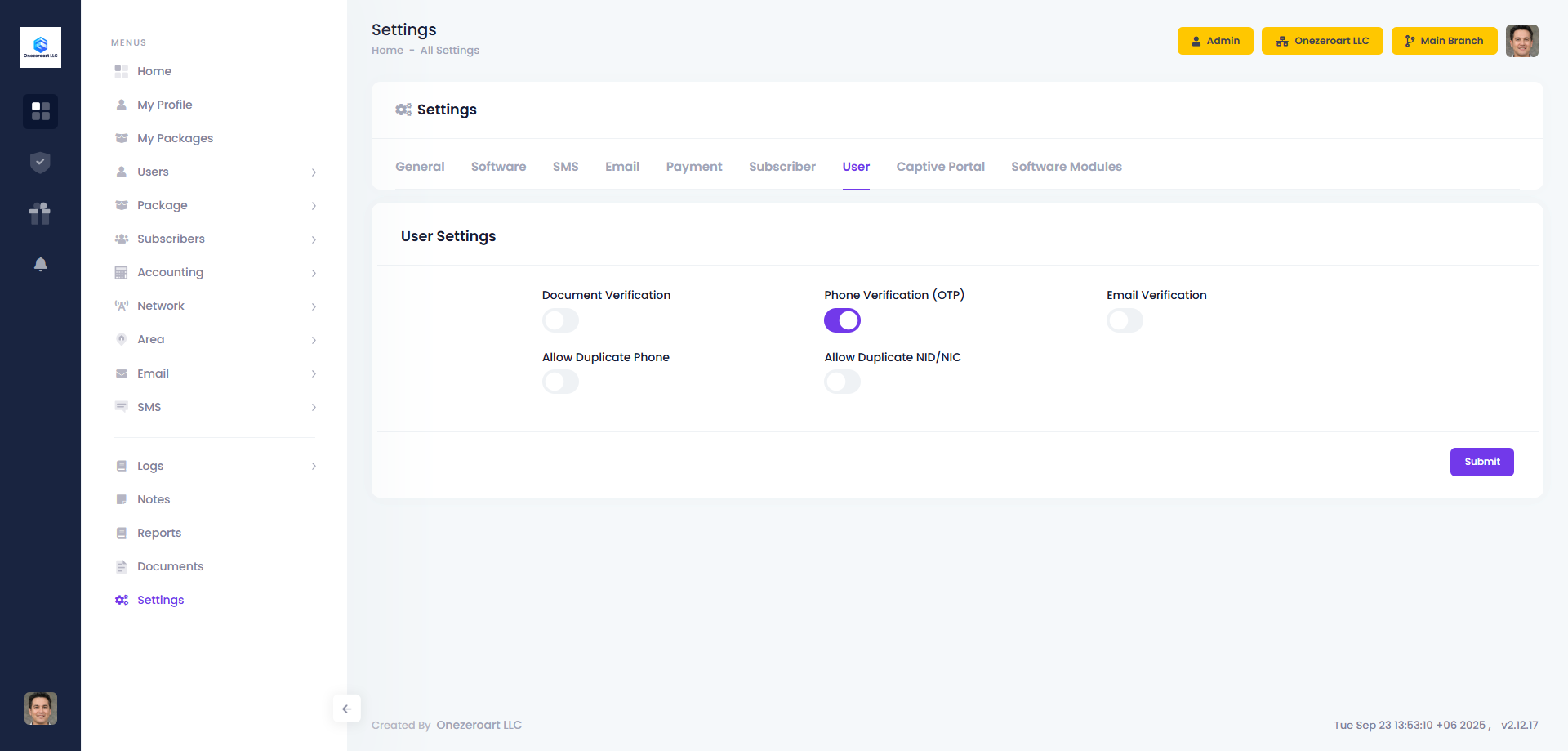
User Settings
Overview
User Settings control how admin users, resellers, and staff members are verified and managed in the system. These settings apply to the admin panel users (not subscribers). They ensure proper authentication, data validation, and security for users who manage the ISP operations.
WHO ARE "USERS"?
In ZAL ULTRA, "Users" refers to:
- Admin Users - Super admin, admins
- Resellers - Sub-ISPs who manage their own subscribers
- Staff Members - Employees with limited access
These are different from "Subscribers" (internet customers).
📋 Table of Contents
Verification Settings
Document Verification
What It Does: Requires users (admin/reseller/staff) to upload identity documents during account creation.
When Enabled (On)
- ✅ Users must upload identity document
- ✅ Document upload field appears in user creation form
- ✅ Admin can verify uploaded documents
- ✅ Better KYC for resellers
- ✅ Prevents unauthorized user accounts
- ✅ Helps track who has admin access
When Disabled (Off)
- ❌ No document upload required
- ✅ Faster user creation
- ⚠️ Less verification
Supported Document Types
- National ID card
- Passport
- Driver's license
- Business registration (for resellers)
- PDF or image files
- Maximum file size: 2MB
Use Cases
Enable When:
- Creating reseller accounts (important for sub-ISP verification)
- High-security environments
- Government compliance required
- Multiple staff members
- Need audit trail of who has access
Disable When:
- Small ISP with trusted staff only
- Quick internal user creation
- Testing environment
Who Needs Documents?
| User Type | Document Required? | Why? |
|---|---|---|
| Super Admin | Optional | Already verified during setup |
| Admin | Recommended | Access to all features |
| Reseller | ✅ Required | Managing their own business |
| Staff | Recommended | Limited access but still important |
Phone Verification (OTP)
What It Does: Sends one-time password (OTP) to user's phone number for verification during account creation or login.
When Enabled (On)
- ✅ OTP sent to phone during user creation
- ✅ User must enter correct OTP to activate account
- ✅ Verifies phone number is real and accessible
- ✅ Prevents fake phone numbers
- ✅ Better account security
- ✅ Can be used for password recovery
When Disabled (Off)
- ❌ No phone verification
- ✅ Faster user creation
- ⚠️ May allow fake phone numbers
How It Works
During User Creation:
- Admin creates new user account
- User receives 6-digit OTP via SMS
- User enters OTP to activate account
- Phone number verified
During Login (if 2FA enabled):
- User enters username + password
- System sends OTP to registered phone
- User enters OTP
- Access granted
OTP Settings
- OTP Length: 6 digits
- Validity: 10 minutes
- Resend: After 60 seconds
- Max Attempts: 3 tries
Requirements
- SMS gateway must be configured
- SMS Status must be enabled
- Sufficient SMS balance
Use Cases
Enable When:
- Creating reseller accounts
- High-security requirements
- Multiple admin users
- Need two-factor authentication
- Want phone-based password recovery
Disable When:
- Small ISP with few trusted users
- SMS costs are concern
- Testing environment
Email Verification
What It Does: Sends verification link to user's email address during account creation.
When Enabled (On)
- ✅ Verification email sent during user creation
- ✅ User must click link to verify email
- ✅ Verifies email is real and accessible
- ✅ Prevents fake email addresses
- ✅ Better communication channel
- ✅ Can be used for password recovery
When Disabled (Off)
- ❌ No email verification
- ✅ Faster user creation
- ⚠️ May allow fake emails
How It Works
During User Creation:
- Admin creates new user account
- User receives verification email
- User clicks verification link
- Email marked as verified
- Account activated
For Password Recovery:
- User clicks "Forgot Password"
- Receives reset link via email
- Sets new password
Email Settings
- Link Validity: 24 hours
- Resend: Unlimited
- Template: Customizable
Requirements
- Email settings must be configured
- SMTP server must be working
- Valid sender email address
Use Cases
Enable When:
- Creating reseller accounts
- Multiple admin users
- Need email-based password recovery
- Professional environment
Disable When:
- Small ISP with few trusted users
- Email server not configured
- Testing environment
Data Validation
Allow Duplicate Phone
What It Does: Controls whether multiple users (admin/reseller/staff) can have the same phone number.
When Enabled (On)
- ✅ Same phone number can be used for multiple users
- ✅ Useful for office phone shared by staff
- ⚠️ May cause confusion in OTP delivery
- ⚠️ Less secure
When Disabled (Off)
- ❌ Each phone number must be unique
- ✅ Better data integrity
- ✅ Easier user identification
- ✅ Reliable OTP delivery
- ✅ Better security
Use Cases
Enable When:
- Office phone shared by multiple staff
- Small team using same contact number
- Testing environment
Disable When:
- Multiple resellers (each needs unique contact)
- Security is priority
- OTP verification enabled
- Production environment
Recommendation
- ❌ Disable for resellers - Each reseller should have unique phone
- ⚠️ Optional for staff - Depends on your office setup
- ✅ Disable for security - Unique phones = better tracking
Allow Duplicate NID
What It Does: Controls whether multiple users can have the same identity number (National ID, Passport, etc.).
When Enabled (On)
- ✅ Same identity number can be used for multiple users
- ⚠️ May violate KYC regulations
- ⚠️ Security risk
- ⚠️ Audit trail issues
When Disabled (Off)
- ❌ Each identity number must be unique
- ✅ Better KYC compliance
- ✅ Prevents identity fraud
- ✅ One person = one user account
- ✅ Better audit trail
Use Cases
Enable When:
- Testing environment only
- Special circumstances (very rare)
Disable When:
- Production environment (always)
- Creating reseller accounts
- Government compliance required
- Security is priority
- Need proper audit trail
Recommendation
- ❌ Always disable in production
- ❌ Never allow for resellers
- ✅ Each person should have unique identity
User Types Explained
Super Admin
Who: The main administrator with full system access
Permissions:
- ✅ Full access to all features
- ✅ Can create/edit/delete all users
- ✅ Can manage all settings
- ✅ Can view all data
- ✅ Cannot be deleted
Verification Needs:
- Document: Optional (already verified)
- Phone: Recommended
- Email: Recommended
Admin
Who: Secondary administrators with full access
Permissions:
- ✅ Full access to most features
- ✅ Can create/edit users (except super admin)
- ✅ Can manage settings
- ✅ Can view all data
- ❌ Cannot delete super admin
Verification Needs:
- Document: Recommended
- Phone: Recommended
- Email: Recommended
Reseller
Who: Sub-ISPs who manage their own subscribers
Permissions:
- ✅ Can manage own subscribers
- ✅ Can view own reports
- ✅ Can manage own packages
- ✅ Can collect payments
- ❌ Cannot access other resellers' data
- ❌ Cannot change system settings
Verification Needs:
- Document: ✅ Required (business verification)
- Phone: ✅ Required (contact verification)
- Email: ✅ Required (communication)
Why Verification Important:
- Resellers handle money
- Resellers manage subscribers
- Need proper business identity
- Legal compliance
- Dispute resolution
Staff
Who: Employees with limited access
Permissions:
- ✅ Limited access based on role
- ✅ Can view assigned data
- ✅ Can perform assigned tasks
- ❌ Cannot access all features
- ❌ Cannot change settings
Verification Needs:
- Document: Recommended
- Phone: Optional
- Email: Recommended
Best Practices
For Small ISPs (1-5 users)
Recommended Settings:
- ❌ Document Verification: Off (trusted team)
- ⚠️ Phone Verification: Optional
- ✅ Email Verification: On (for password recovery)
- ❌ Allow Duplicate Phone: Off
- ❌ Allow Duplicate NID: Off
Why:
- Small trusted team
- Easy user management
- Email verification sufficient
- Maintain data integrity
For Medium ISPs (5-20 users)
Recommended Settings:
- ✅ Document Verification: On (for resellers only)
- ✅ Phone Verification: On
- ✅ Email Verification: On
- ❌ Allow Duplicate Phone: Off
- ❌ Allow Duplicate NID: Off
Why:
- Multiple resellers need verification
- Better security with OTP
- Proper audit trail
- Data integrity important
For Large ISPs (20+ users)
Recommended Settings:
- ✅ Document Verification: On (all users)
- ✅ Phone Verification: On
- ✅ Email Verification: On
- ❌ Allow Duplicate Phone: Off
- ❌ Allow Duplicate NID: Off
Why:
- Many users = higher risk
- Need complete verification
- Compliance requirements
- Proper audit trail essential
- Security is critical
For Reseller-Heavy ISPs
Recommended Settings:
- ✅ Document Verification: On (mandatory for resellers)
- ✅ Phone Verification: On (mandatory for resellers)
- ✅ Email Verification: On (mandatory for resellers)
- ❌ Allow Duplicate Phone: Off (each reseller unique)
- ❌ Allow Duplicate NID: Off (each reseller unique)
Why:
- Resellers are business partners
- Need proper KYC
- Legal protection
- Dispute resolution
- Financial accountability
Security Recommendations
Password Policy
- ✅ Require strong passwords (8+ characters)
- ✅ Mix of letters, numbers, symbols
- ✅ Change passwords regularly
- ✅ Don't share passwords
Two-Factor Authentication
- ✅ Enable phone verification
- ✅ Use OTP for sensitive actions
- ✅ Require OTP for password reset
Access Control
- ✅ Give minimum required permissions
- ✅ Review user access regularly
- ✅ Disable inactive users
- ✅ Monitor user activity logs
Document Verification
- ✅ Verify all reseller documents
- ✅ Keep copies of identity documents
- ✅ Update expired documents
- ✅ Cross-check with government databases (if possible)
Comparison: User vs Subscriber Settings
| Feature | User Settings | Subscriber Settings |
|---|---|---|
| Who | Admin/Reseller/Staff | Internet customers |
| Purpose | System access control | Service delivery |
| Document Verification | Business/identity docs | Identity docs |
| Phone Verification | For admin access | For service activation |
| Email Verification | For admin communication | For customer communication |
| Duplicate Phone | Usually not allowed | May be allowed for families |
| Duplicate NID | Never allowed | May be allowed for families |
| Security Level | Very High | Medium to High |
| Verification Priority | Critical for resellers | Important for all |
Troubleshooting
OTP Not Received (User)
Check These:
- ✅ SMS gateway configured
- ✅ SMS Status enabled
- ✅ Sufficient SMS balance
- ✅ Phone number format correct
- ✅ User's phone is on
- ✅ Check spam/blocked messages
Email Verification Not Working
Check These:
- ✅ Email settings configured
- ✅ SMTP server working
- ✅ From email address valid
- ✅ User's email address correct
- ✅ Check spam/junk folder
- ✅ Verification link not expired (24 hours)
Cannot Create Reseller
Possible Reasons:
- ⚠️ Document verification enabled but no document uploaded
- ⚠️ Phone verification enabled but OTP not verified
- ⚠️ Email verification enabled but email not verified
- ⚠️ Duplicate phone number (if not allowed)
- ⚠️ Duplicate NID (if not allowed)
Solution:
- Complete all required verifications
- Use unique phone and NID
- Check all validation errors
Reseller Cannot Login
Check These:
- ✅ Account is active
- ✅ Email verified (if required)
- ✅ Phone verified (if required)
- ✅ Password correct
- ✅ Account not suspended
- ✅ OTP received (if 2FA enabled)
Summary Table
| Setting | Small ISP | Medium ISP | Large ISP | Reseller-Heavy |
|---|---|---|---|---|
| Document Verification | ❌ Off | ⚠️ Resellers Only | ✅ All Users | ✅ All Users |
| Phone Verification | Optional | ✅ On | ✅ On | ✅ On |
| Email Verification | ✅ On | ✅ On | ✅ On | ✅ On |
| Allow Duplicate Phone | ❌ Off | ❌ Off | ❌ Off | ❌ Off |
| Allow Duplicate NID | ❌ Off | ❌ Off | ❌ Off | ❌ Off |
Key Takeaway: Always disable duplicate phone/NID. Enable all verifications for resellers.
Related Documentation
- General Settings - Company information
- Software Settings - System configuration
- SMS Settings - SMS gateway setup
- Email Settings - Email server setup
- Subscriber Settings - Subscriber portal settings
- Captive Portal Settings - Hotspot configuration