
Appearance
Quick Pay
Overview
Quick Pay is a public page where your subscribers pay their internet bill without logging in. The subscriber types their username, phone number or customer ID, sees their name, package and total, taps a payment gateway and pays. That's it: no password, no portal, no support call.
Quick Pay uses the payment gateways you have already set up in Payment Gateway Settings, so there is nothing extra to configure with your gateway.
WHY QUICK PAY?
- Fewer support calls - subscribers who forgot their portal password can still pay
- Faster payments - a few taps from an SMS link or a QR code on the bill
- Safe - only the name (masked), package and total are shown; no address, email or phone
- One link per branch - print the QR code on bills, send the link by SMS, put it on your website
Available since Zal Ultra v2.29.9.
📋 Table of Contents
- How Subscribers Pay
- Turn On Quick Pay
- Settings
- Quick Pay Links and QR Codes
- Supported Payment Gateways
- Security
- Troubleshooting
How Subscribers Pay
Step 1: Open the Quick Pay link
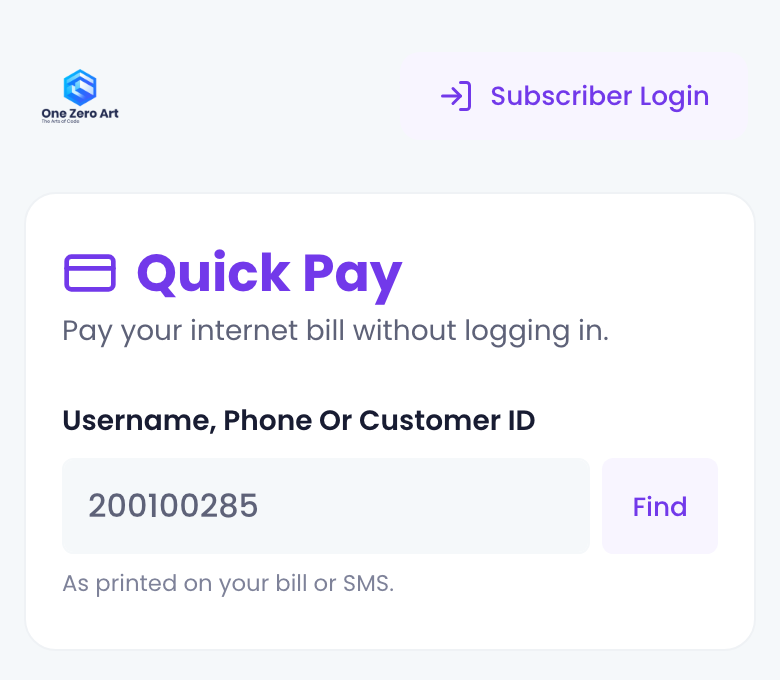
The subscriber opens your Quick Pay link (for example https://your-domain.com/quick-pay) or scans its QR code, then types their Username, Phone Number or Customer ID (whichever you allow) and taps Find.
Step 2: Check the bill and tap a gateway
On the same page Quick Pay shows:
- Name - masked (for example
Rahim A****) unless you switch masking off - Package - the subscriber's current package
- Total To Pay - the amount for that package, extra fees included
Yes, This Is My Account is already ticked. Under Pay With the subscriber taps the gateway logo, for example bKash.
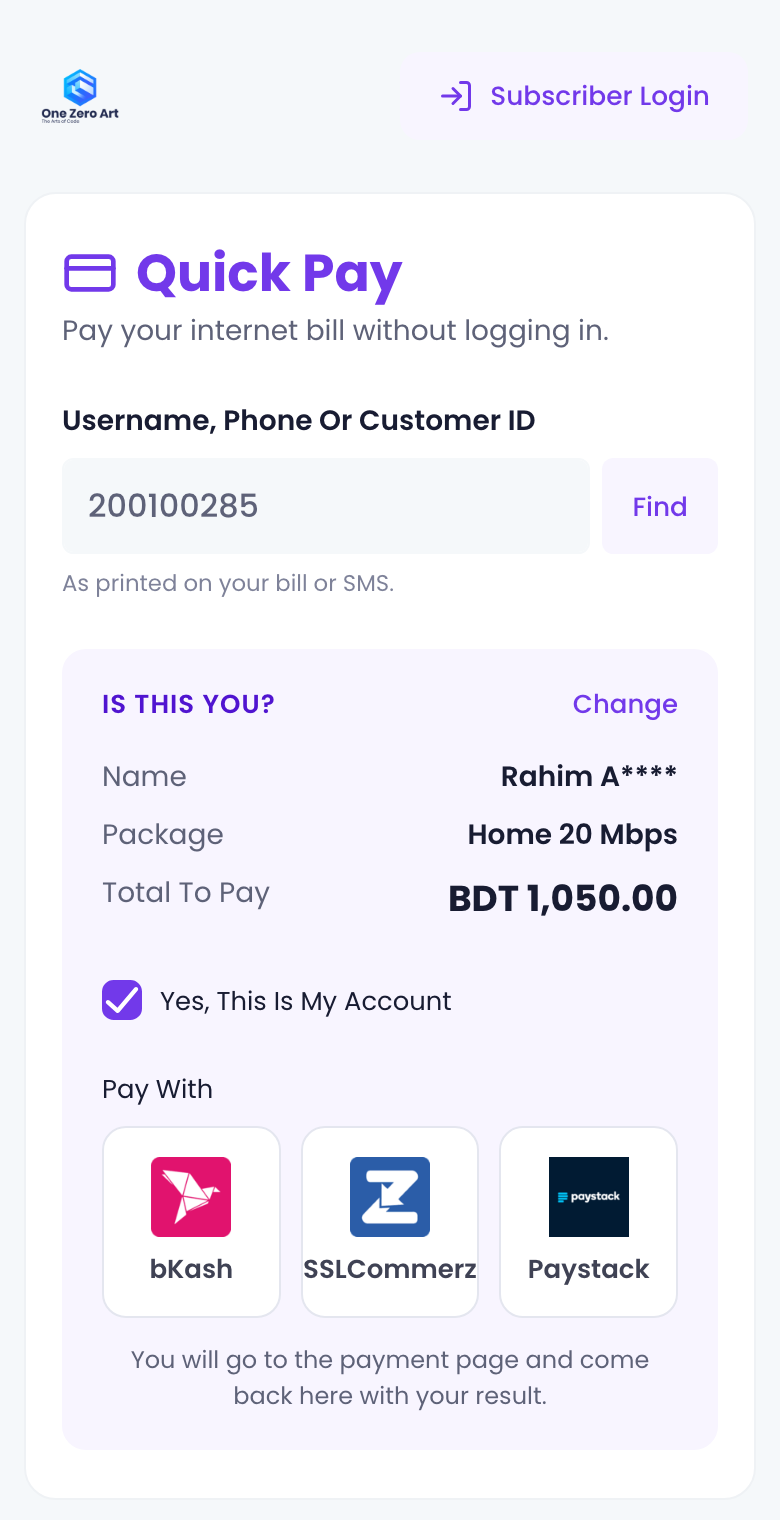
For EasyPaisa and JazzCash Wallet, tapping the logo opens a field for the wallet number (and the last 6 digits of the CNIC for JazzCash MWallet) right under the logos, with a Pay With ... button. There is no popup.
Step 3: Pay on the gateway's page
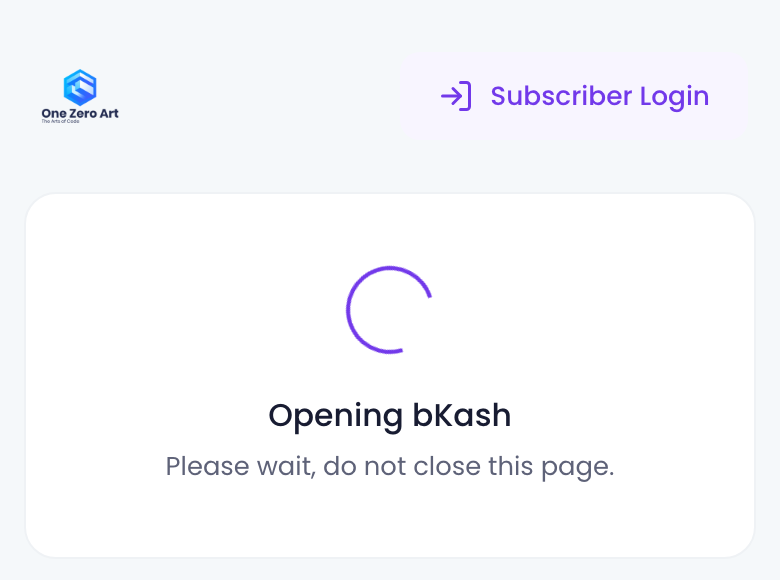
Quick Pay shows Opening bKash for a moment and sends the subscriber to the gateway's own payment page.
Step 4: Result
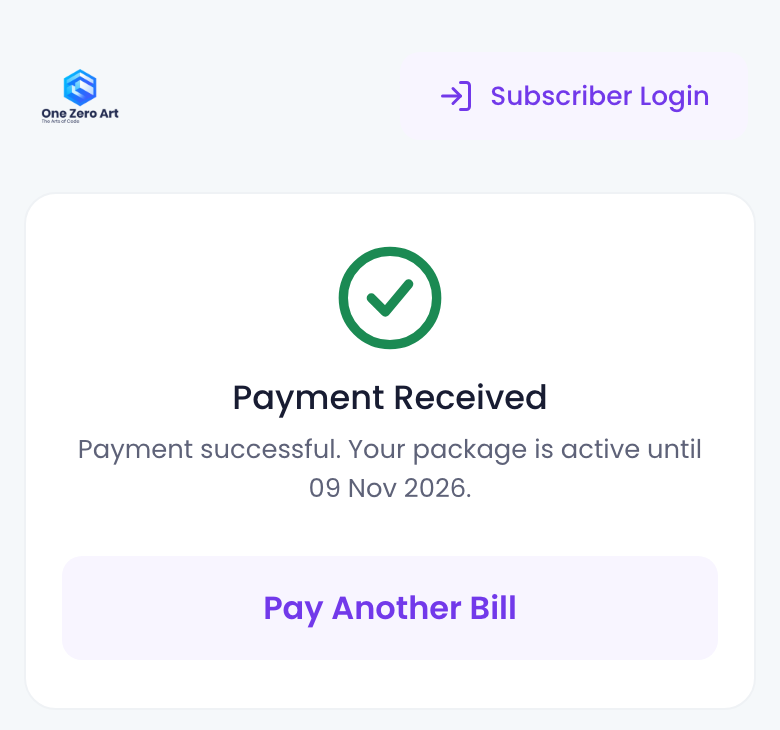
After paying, the gateway sends the subscriber back to Quick Pay, which shows Payment Received (or Payment Not Completed with the reason). The package is activated exactly as with a portal payment: invoice, ledger, SMS and email work the same way.
Quick Pay pays the current package
Quick Pay always pays the subscriber's current package. To change package, the subscriber uses the subscriber portal, or your staff does it from the admin panel.
Turn On Quick Pay
- Go to Settings → Quick Pay
- Switch Quick Pay on
- Under Customers Find Their Account By, tick at least one option
- Click Submit
- Make sure at least one gateway is enabled in Settings → Payment Gateways (the Quick Pay tab lists them)
- Copy the Quick Pay Link and share it
Permission
The Quick Pay tab is shown to users with the Subscriber Settings permission (settings_subscriber).
Settings
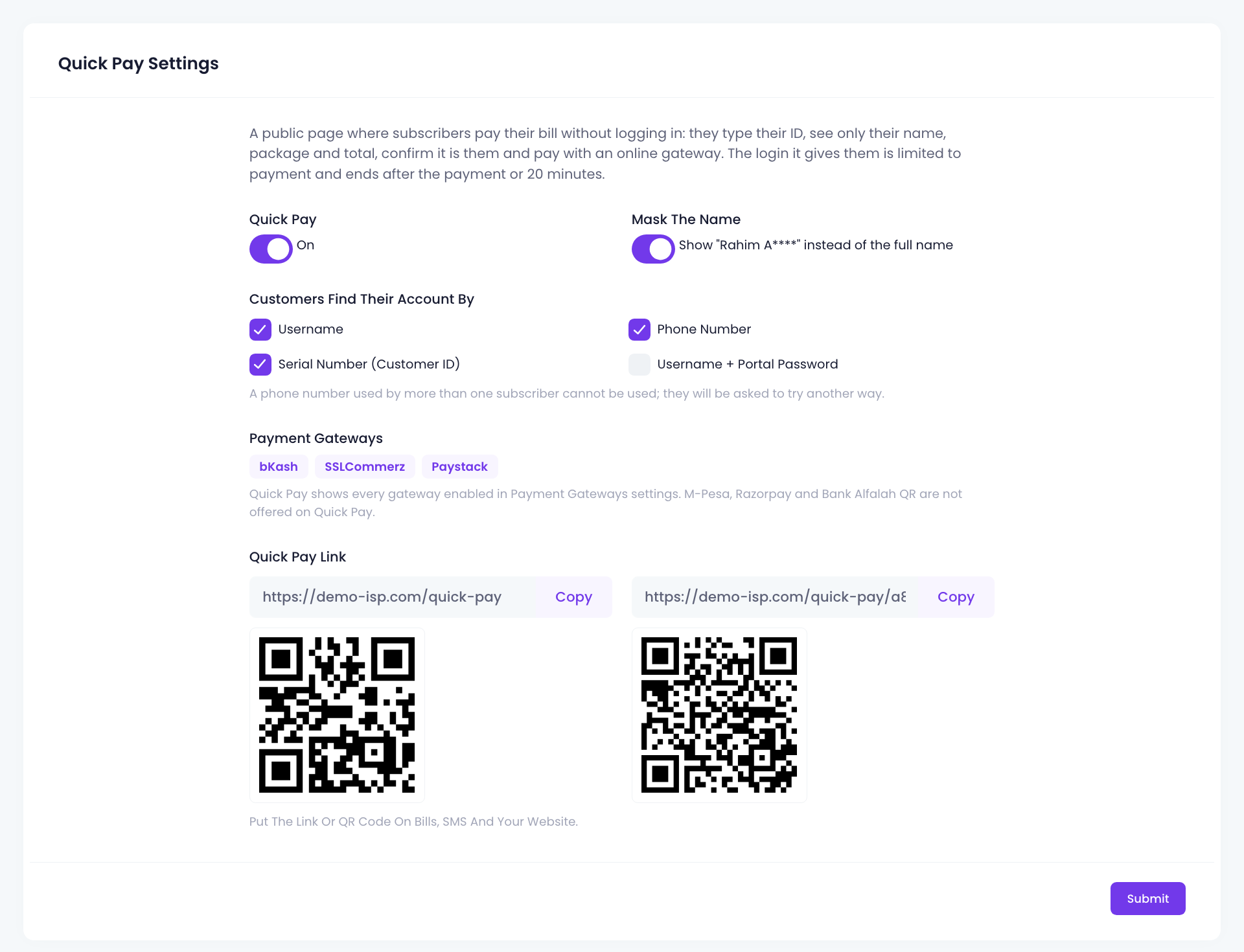
| Setting | What It Does |
|---|---|
| Quick Pay | Turns the Quick Pay page on or off for this ISP/branch. When off, the page shows Quick Pay Is Not Available with a link to the subscriber login. |
| Mask The Name | On (default): shows Rahim A**** instead of the full name. Off: shows the full name. |
| Customers Find Their Account By | What subscribers may type. Tick one or more (see below). |
| Payment Gateways | Read only. Lists the gateways Quick Pay will show: every gateway that is enabled in Payment Gateway Settings and supported by Quick Pay. |
| Quick Pay Link | The page link(s) and QR code(s) for this branch. Use Copy to copy a link. |
Customers Find Their Account By
| Option | What the subscriber types |
|---|---|
| Username | Their username |
| Phone Number | Their phone number |
| Serial Number (Customer ID) | Their serial number / customer ID, as printed on the bill |
| Username + Portal Password | Username and their subscriber portal password (the strictest option) |
Shared phone numbers
A phone number that belongs to more than one subscriber cannot be used to find an account. The subscriber is asked to try another way (for example the customer ID).
Quick Pay Links and QR Codes
Every branch has its own Quick Pay link:
| Link | Opens |
|---|---|
https://your-domain.com/quick-pay/<branch code> | That branch's Quick Pay page. Shown on the branch's Quick Pay tab. |
https://your-domain.com/quick-pay | The default ISP/branch of your server. Shown on that branch's tab only. |
The default ISP/branch for the short /quick-pay link is ISP 1 / branch 1. If your main branch has another number, ask your server administrator (or Zal Ultra support) to set QUICK_PAY_ISP_ID and QUICK_PAY_BRANCH_ID in the server's .env file.
Where to use the link:
- Print the QR code on bills and receipts
- Add the link to your payment reminder and expiry SMS templates
- Add a Pay Your Bill button to your website or Facebook page
Supported Payment Gateways
Quick Pay shows every gateway below that is enabled for the branch:
| Gateway | How It Works On Quick Pay |
|---|---|
| bKash | Tap the logo → bKash payment page |
| SSLCommerz | Tap the logo → SSLCommerz payment page |
| JazzCash Card | Tap the logo → JazzCash card page |
| JazzCash (MWallet REST v1.1) | Wallet number field under the logos → Pay |
| JazzCash Wallet (MWallet v2.0 / REST PGW) | Wallet number (and CNIC for v2.0) field under the logos → Pay |
| EasyPaisa | Wallet number field under the logos → Pay |
| Paystack | Tap the logo → Paystack payment page |
| Nomba | Tap the logo → Nomba payment page |
| NextPay | Tap the logo → NextPay payment page |
| Flutterwave | Tap the logo → Flutterwave payment page |
Not offered on Quick Pay: M-Pesa (phone push and waiting screen), Razorpay (its own checkout popup) and Bank Alfalah QR. Subscribers can still pay with these from the subscriber portal.
Security
Quick Pay is built so a stranger cannot learn anything about your subscribers or pay someone else's account by mistake:
- Only three things are shown: the (masked) name, the package and the total. Never the address, email, phone or balance.
- Payment-only login: when the subscriber taps a gateway, Quick Pay logs them in for payment only. That login cannot open any other portal page and ends after the payment, or after 20 minutes.
- Limits: a visitor can try up to 10 lookups a minute; Username + Portal Password allows 5 tries per 15 minutes.
- One payment at a time: a second browser tab cannot switch the open payment to another subscriber.
- Same checks as the portal: the gateway confirms every payment before the package is activated, and each payment is credited once.
Troubleshooting
"Quick Pay Is Not Available"
Check:
- Quick Pay is switched on in Settings → Quick Pay for that branch
- At least one option is ticked under Customers Find Their Account By
- You are using the right link: the
/quick-paylink opens the default branch only. Use the branch link from that branch's Quick Pay tab.
"We could not find that account"
Check:
- The subscriber typed the value exactly as on the bill
- That way of finding the account is ticked in the settings
- The phone number is not shared by several subscribers
No payment gateways are shown
Enable at least one supported gateway in Settings → Payment Gateways. The Quick Pay tab warns you when none is enabled.
"Too many attempts"
The visitor typed too many wrong values. They can try again after a minute (15 minutes for Username + Portal Password).
Payment taken but the account is not active
Check the payment in Logs → PGW Transactions (see Online Payment (PGW) Report). For wallet payments (JazzCash, EasyPaisa) Zal Ultra asks the gateway again a few minutes later and finishes the activation by itself. A payment marked Processing (needs reconcile) or No Response needs a manual check: use Verify Payment where it is available, or the gateway's merchant portal.
Related Documentation
- Payment Gateway Settings - Set up bKash, SSLCommerz, JazzCash and others
- Subscriber Settings - Subscriber portal settings
- SMS Settings - Put the Quick Pay link in your SMS templates
- Online Payment (PGW) Report - Check and verify online payments