
Appearance
Ledger Reports
Overview
The Ledger is the central financial record-keeping system in Zal Ultra. It tracks every balance change for both users (resellers) and subscribers, providing a complete audit trail of all financial transactions.
Ledger Types
| Type | ID | Description | Color |
|---|---|---|---|
| Payment/Topup | 1 | Balance added to account | Green (+) / Red (-) |
| Withdraw | 2 | Balance withdrawn | Red |
| Invoice | 3 | Invoice payment/charge | Red |
| Profit | 4 | Profit distribution | Green |
Understanding Ledger Entries
Entry Structure
Each ledger entry contains:
| Field | Description |
|---|---|
transaction_id | Unique transaction reference |
ledger_type | Type of transaction (1-4) |
to_profile_type | 1 = User, 2 = Subscriber |
to_id | ID of balance holder |
to_username | Username of balance holder |
amount | Transaction amount (+/-) |
previous_balance | Balance before transaction |
balance | Balance after transaction |
against_profile_type | Counter-party type |
against_id | Counter-party ID |
invoices_id | Related invoice (if any) |
payments_id | Related payment (if any) |
no_balance_change | True for tracking-only entries |
action_by_id | Who performed the action |
How Ledger Works
Balance Calculation
The ledger maintains a running balance:
New Balance = Previous Balance + Amount

Example:
Previous Balance: 500 BDT
Amount: +100 BDT (topup)
New Balance: 600 BDT
The no_balance_change Flag
This important flag determines if the transaction affects actual balance:
| Value | Meaning | Use Case |
|---|---|---|
false | Balance IS changed | Normal transactions |
true | Balance NOT changed | Tracking/audit only |
Example: Cash payments are tracked but don't change system balance because money is exchanged outside the system.
Ledger Entry Examples
1. Subscriber Balance Topup
Type: Payment (1)
To: Subscriber
Amount: +500 BDT
Previous: 0 BDT
Balance: 500 BDT
Note: "Admin topped up subscriber balance"
2. Subscriber Activation (Prepaid)
Type: Invoice (3)
To: Subscriber
Amount: -300 BDT
Previous: 500 BDT
Balance: 200 BDT
Note: "Package activation payment"
3. Reseller Profit
Type: Profit (4)
To: Reseller
Amount: +50 BDT
Previous: 1000 BDT
Balance: 1050 BDT
Note: "Profit from subscriber activation"
4. Reseller Balance Cut (Postpaid)
Type: Invoice (3)
To: Reseller
Amount: -250 BDT
Previous: 1000 BDT
Balance: 750 BDT
Note: "Subscriber activation - upstream cost"
Viewing Ledger Reports
Navigate to Accounting → Ledger Reports to access the ledger.
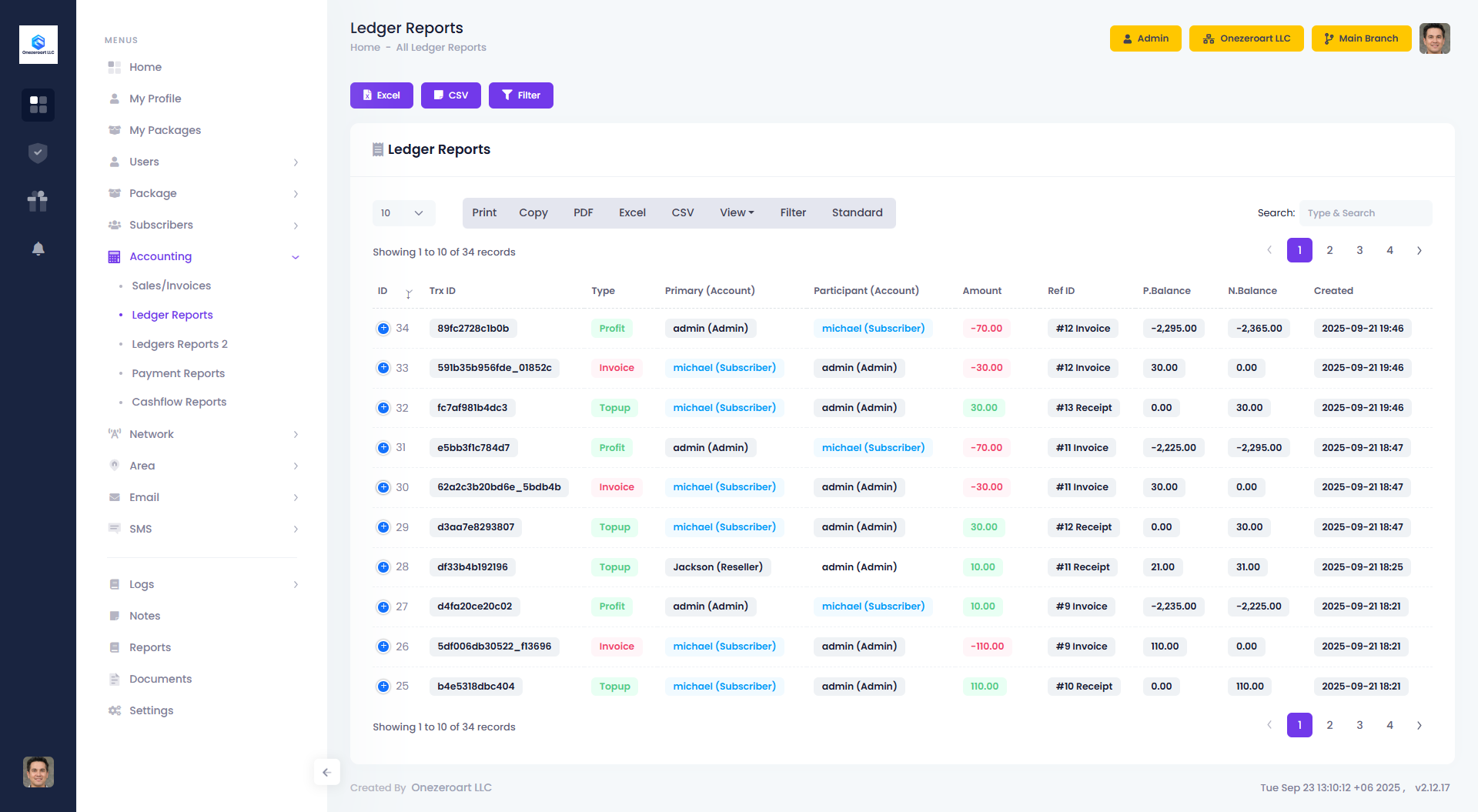
Report Views
| View | Description |
|---|---|
| Standard View | Table format with all columns |
| Detailed View | Narrative format with full context |
Filter Options
Use filters to find specific transactions:
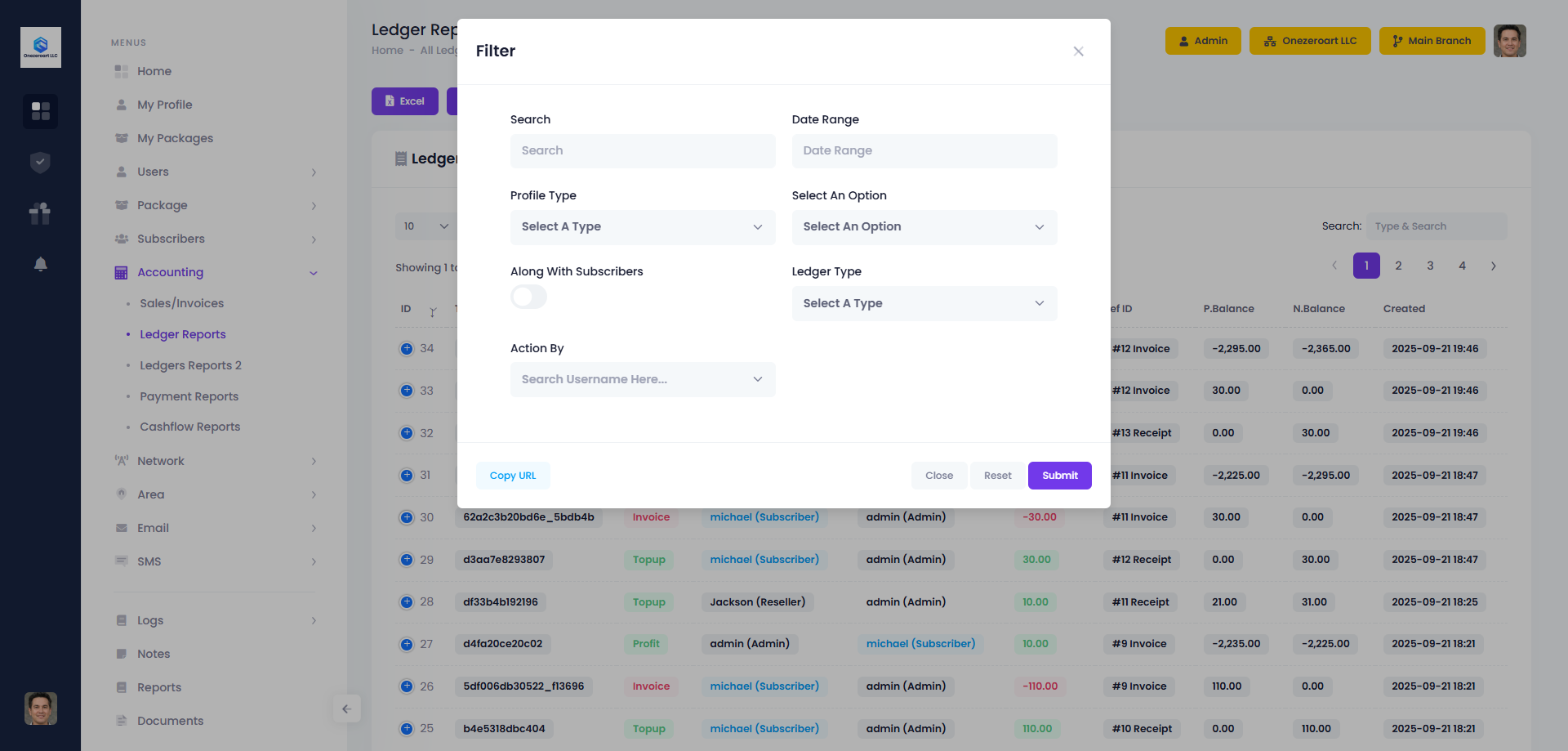
| Filter | Description |
|---|---|
| Search | Find by transaction ID, username, amount, or note |
| Date Range | Filter by time period |
| Profile Type | Users or Subscribers |
| Select User/Subscriber | Specific account |
| Along With Subscribers | Include subscriber transactions for user |
| Ledger Type | Payment, Withdraw, Invoice, or Profit |
| Action By | Who performed the transaction |
Search Tips
- Use
#123to search by invoice ID - Use
@456to search by payment ID - Search by username or transaction ID
Export Options
Excel Export
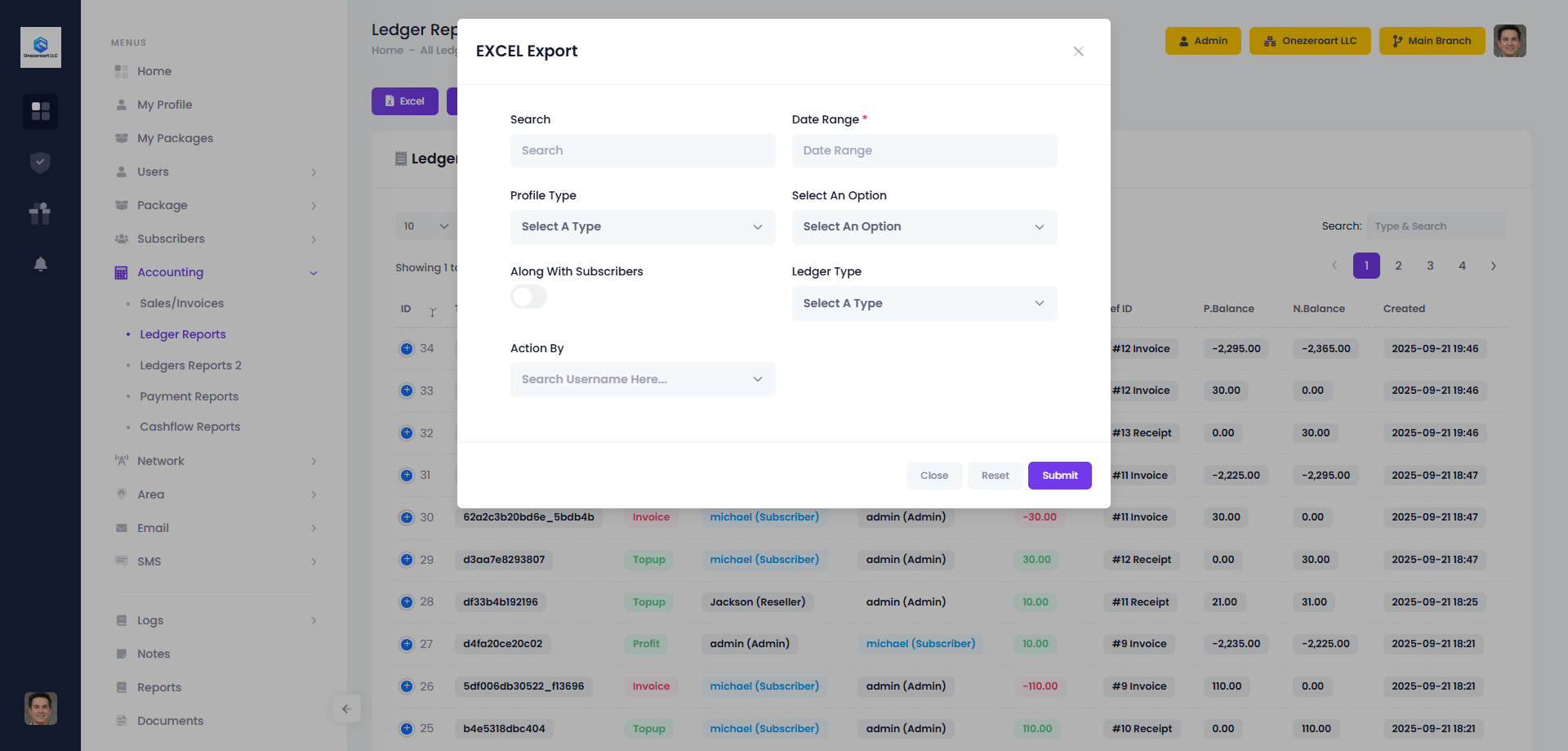
- Apply desired filters
- Click Excel Export
- Wait for file generation
- Download
.xlsxfile
CSV Export
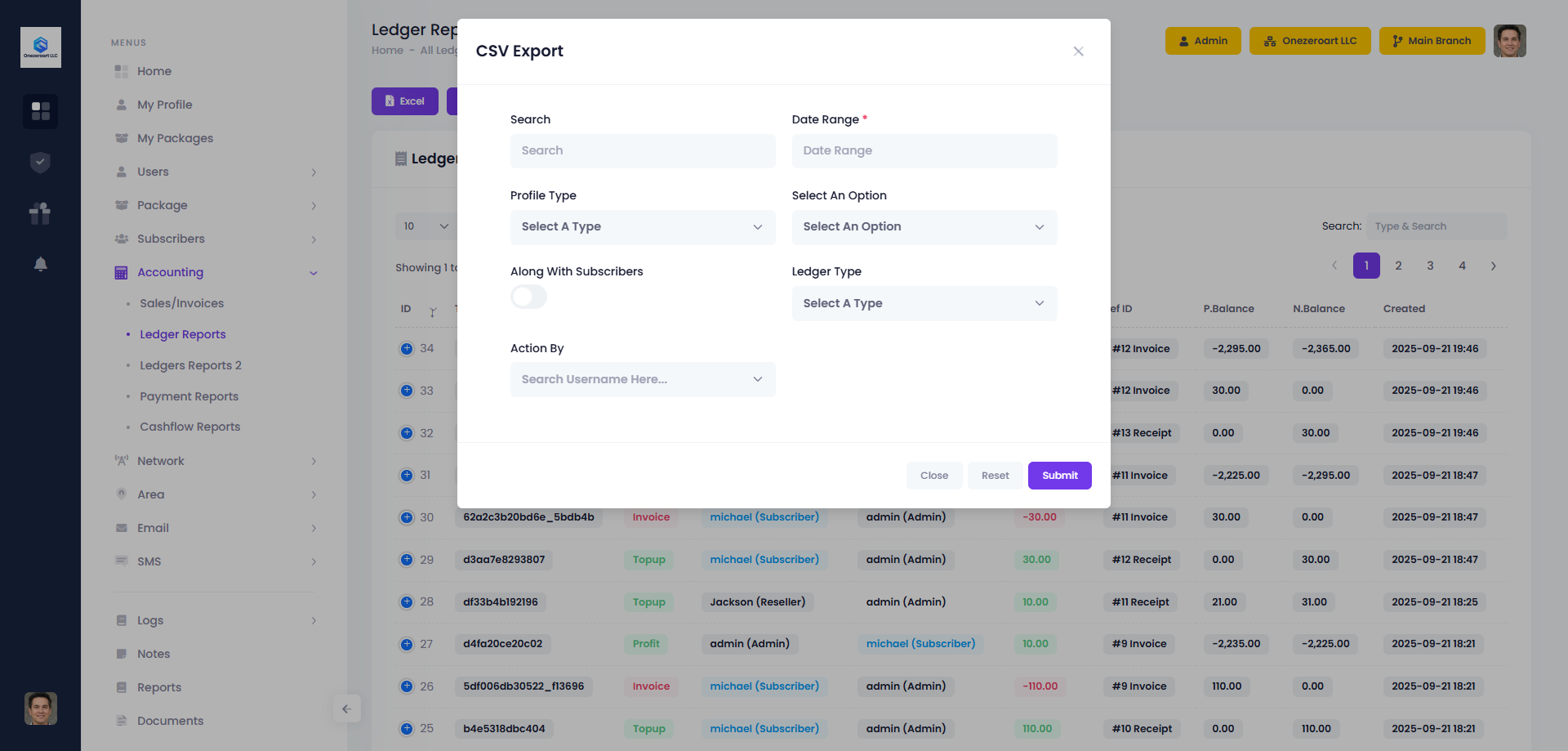
- Apply desired filters
- Click CSV Export
- Wait for file generation
- Download
.csvfile
Data Isolation
Ledger data is filtered based on user permissions:
Admin/Staff
- View all ledger entries
- Filter by any user or subscriber
Reseller
- Own ledger entries
- Own subscribers' entries
- Sub-resellers' and retailers' entries
Sub-Reseller
- Own ledger entries
- Own subscribers' entries
- Retailers' entries
Retailer
- Own ledger entries
- Own subscribers' entries only
Common Use Cases
Check Subscriber Balance History
- Filter by Profile Type: Subscriber
- Select the subscriber
- View all balance changes
Track Reseller Profits
- Filter by Profile Type: Reseller
- Select the reseller
- Filter by Ledger Type: Profit
- View all profit entries
Audit Specific Transaction
- Search by transaction ID or invoice ID
- View complete transaction details
- Check related invoice/payment links
Related Features
- Billing Overview - Understanding the billing system
- Invoice - Invoice management
- Payments - Payment processing
- Cashflow - Income and expense tracking