Appearance
Logs
Enable Log In MikroTik
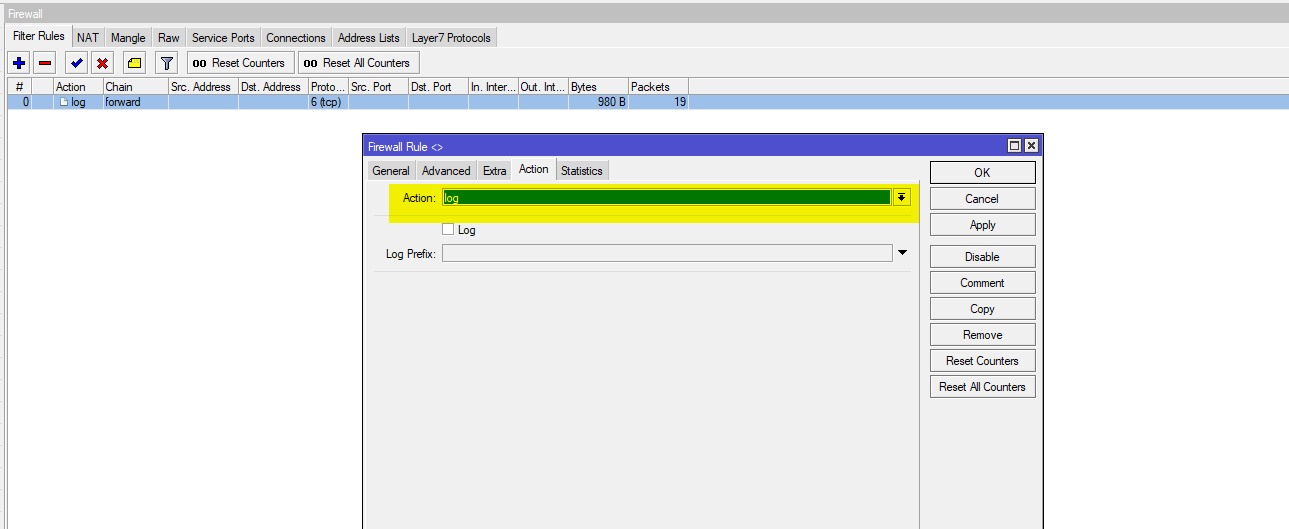
It's very easy to set up tracking logs in ABC Syslog Server. All you need is to set up firewall and logging rules in MikroTik. Follow these screenshots to set up MikroTik properly. Once your MikroTik setup is done, you can see tracking logs in the ABC Syslog Server Logs module. Please be aware of the storage on your server as ABC Syslog Server stores all tracking data on the same server. ABC Syslog Server will only keep 1 year of tracking data and will auto-remove anything older than 1 year.
Step 1 — Open MikroTik WebFig or Winbox and navigate to IP > Firewall. Go to the Mangle tab to begin setting up traffic rules.
Step 2 — Add a new Mangle rule. Set the Chain, Src. Address, and Dst. Address fields to define the traffic you want to capture and log.
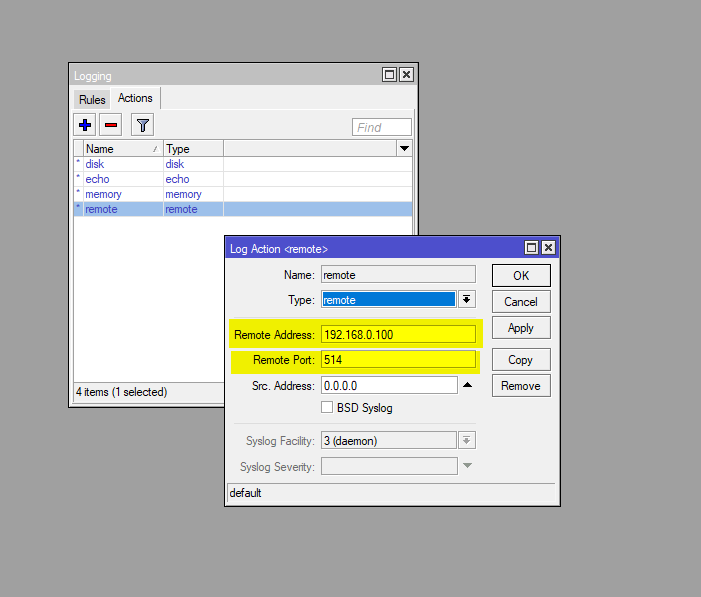
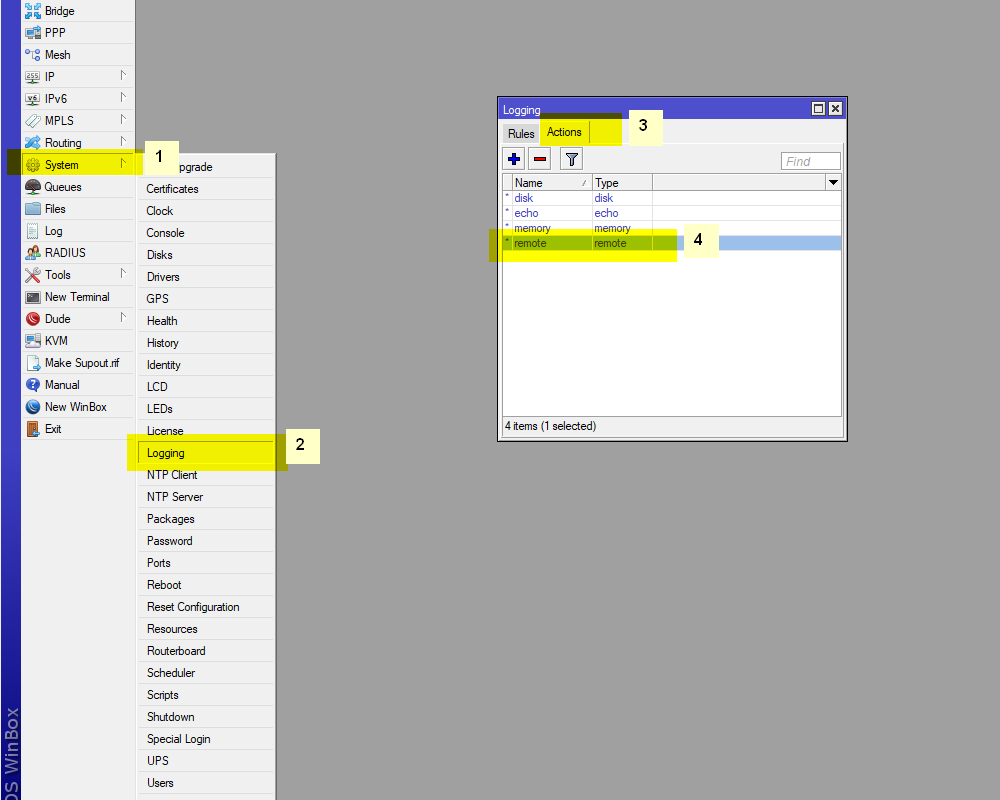
Step 3 — Navigate to System > Logging > Actions. Add a new remote action and enter your ABC Syslog Server IP address with port 514.
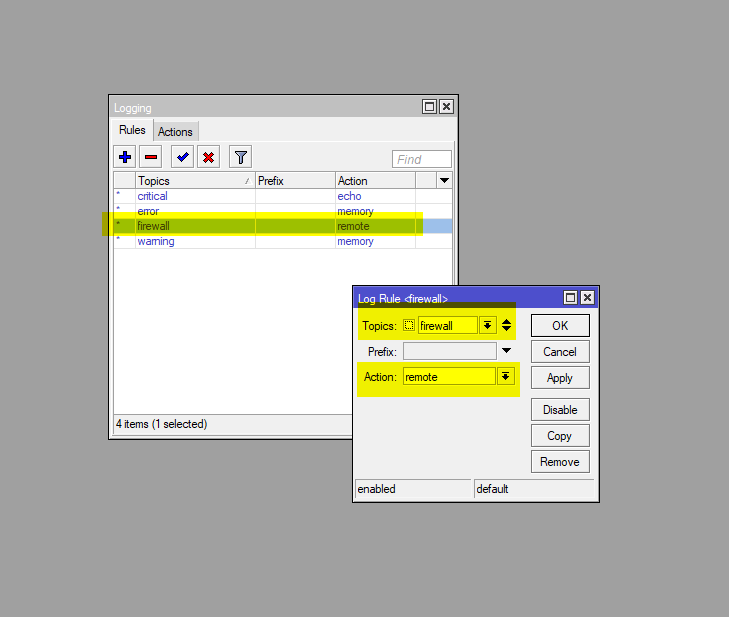
Step 4 — Go to System > Logging > Rules. Add logging rules that assign the remote syslog action to the log topics you want to forward.
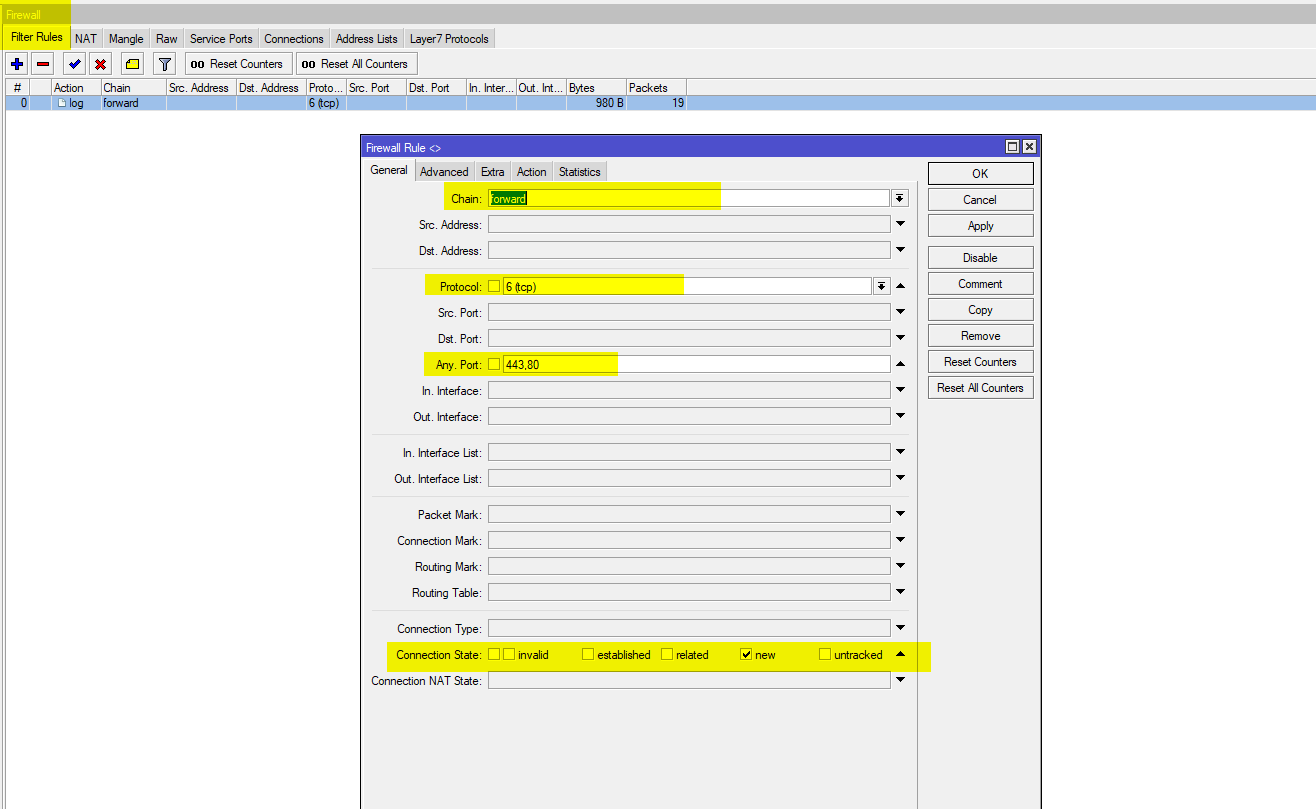
Step 5 — After saving all settings, open the Tracking Logs section in ABC Syslog Server to confirm logs are being received from your MikroTik device.